Setting up a new system sounds scary to many PC users and is considered a secret knowledge by some people. When you buy a laptop or other portable device, Windows operating system is usually preinstalled, so it’s ready to use. However, installing Windows is inevitable when you build a PC on your own. In this article, we’ll cover all the aspects of your hardware that can impact the installation time.
Your Disk Type Matters
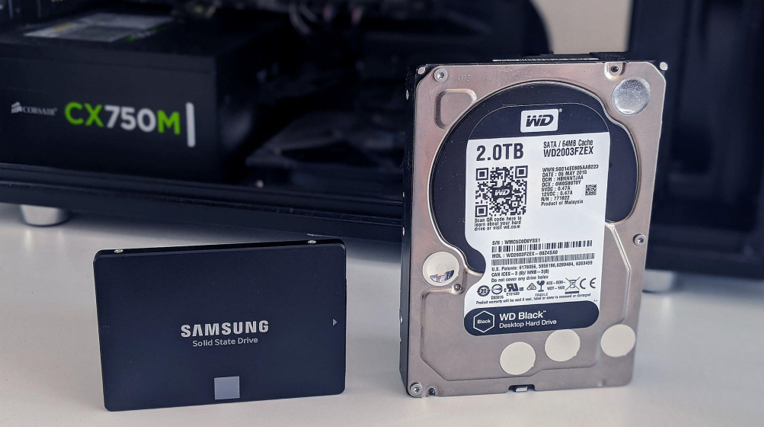
The amount of time you’ll need to spend on the installation process is mostly dependent on your disk type. On a modern device with SSD (Solid State Drive) and a fast Internet connection, it will take you between 10 to 15 minutes. Most modern devices are equipped with SSDs, so if you bought a new machine, it’s most likely you have one. However, if your laptop or PC is a few years old and equipped with HDD (Hard Drive Disk), it may require 25 to 40 minutes. It’s not that bad, considering it was made with modern hardware in mind.
Other aspects can also impact the installation time like CPU, RAM, internet speed, or the installation medium of your choice (DVD/USB). However, disk type matters most when performing a clean install of Windows. Even an older computer can strongly benefit from a disk upgrade that will significantly affect overall installation time. Additionally, you can check if your system meets Windows 10 system requirements.
Windows 10 System Requirements
- Processor:1 GHz or faster
- RAM: 1 GB (32-bit) or 2 GB (64-bit)
- Graphics: DirectX 9 or later with WDDM 1.0 driver (the latter is the graphics architecture for video drivers)
- Hard Disk Space:16 GB (32-bit) or 20 GB (64-bit)
- Display:800×600 resolution
As you can see, these requirements aren’t demanding, and most devices (even the cheapest ones) with basic system configuration can handle them with no problem. However, if your PC only meets the minimum requirements (which is highly unlikely), you shouldn’t bother with Windows 10 at all.
How Long Does It Take to Download Windows 10?
Head to the Microsoft website and download Media Creation Tool. It’s only a launcher, so downloading it shouldn’t take more than a minute or two. After opening it, you can choose your installation media: It can either be DVD or a USB flash drive. Then, click “Next,” and the tool will start downloading Windows from Microsoft’s server. However, when you choose the ISO file, you’ll have to burn it manually, which will take extra time.
The estimated time to download Windows 10 can vary between 10 minutes to even 1 hour or more. The duration of your download depends on two aspects: your Internet speed and the file size you’re downloading. Windows 10 installer weighs around 3.5 GB. Media Creation Tool won’t show you how long it will take to download, but you can use any kind of Download Time Calculator to measure it yourself.
How Long Does It Take To Install/Reinstall Windows 10?
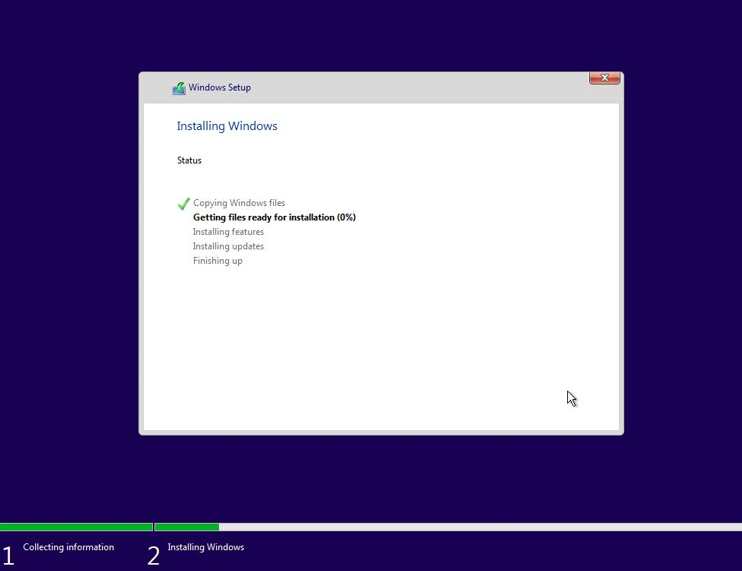
After downloading Windows 10 and burning it on the device of your choice, it’s time to perform a clean install on your PC or laptop. As we already mentioned, it shouldn’t take more than 15 minutes to complete if you have an SSD. Your computer configuration plays a huge role during installation, but you don’t need the latest high-end computer to speed up the process.
In most cases, the hard drive is the slowest component of any old computer, so upgrading it is the way to go. You may also wonder if installing Windows 10 from USB or DVD is faster. It’s hard to answer this directly, as one can be faster than the other. Thus, it’s hard to tell the exact time it will take. As a rule of thumb, it’s best to pick up a new USB rather than an outdated DVD drive.
Here’s a rough estimate of how long it will take to install Windows 10:
- HDD + USB. 60 minutes.
- HDD + USB 2.0. 40-50 minutes.
- HDD + USB 3.0. 30 minutes.
- SSD + USB 1.0. 40 minutes.
- SSD + USB 2.0. 20-30 minutes.
- SSD + USB 3.0. 10-15 minutes.
Installation Process
- Download Media Creation Tool from Microsoft’s website.
- Create a bootable USB drive using the tool or burn an ISO image on DVD.
- Go to your BIOS, change the boot order, so your Windows device is on top, then save and exit.
- Configure the language, time, and keyboard.
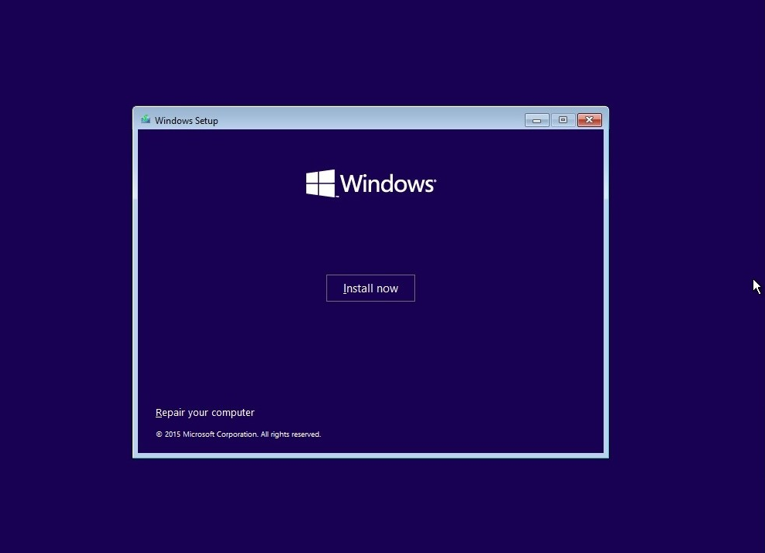
- Enter the Windows Setup Interface and click “Install Now.”
- Enter the Windows 10 key or skip it for later.
Disclaimer: Entering Windows 10 key at this part is most beneficial since you won’t be bothered by annoying watermarks and limited functionality. It’s optional, but it will spare you the hassle later.
- Select which version you want to install.
- Accept the license agreement and choose to install Windows only.
- Choose the partition you want your system to be installed.
- After installation, the system will reboot a few times. Then, you will have to configure some settings, and you’re good to go.
Windows 10 Support Has Ended
Microsoft ended support for Windows 10 on 14 October 2025. That means Windows 10 no longer gets free security updates. A PC running Windows 10 without updates is at risk. Hackers can use known flaws that will never be fixed. Microsoft offers Extended Security Updates, or ESU, for Windows 10. For home users, ESU is paid. It can also be free in some cases, such as when you back up your settings to OneDrive. ESU covers one year of updates. It does not add new features. It only covers security fixes. If you are installing Windows 10 from scratch now, think first. Check if your PC can run Windows 11. Windows 11 needs TPM 2.0 and Secure Boot. Most PCs made after 2018 meet these needs. If your PC can run Windows 11, install Windows 11 instead. It is supported and gets updates.
A Warning About Cheap Windows Keys
Very cheap Windows 10 keys from third-party sites are risky. A real Windows 10 retail key costs far more than $2.20. Very cheap keys are often not legitimate. They may be volume licence keys. They may be MSDN keys. They may be stolen keys. Microsoft can deactivate them at any time. If your key is deactivated, Windows stops working fully. You will see a watermark. Some features will stop. You may lose your files if you need to reinstall. Buy Windows from Microsoft or from an authorized retailer. It costs more. It is safe. A cheap key that stops working costs more in the long run. You will have to buy a real key anyway.
How to Speed Up the Install
Use an SSD if you can. An SSD is far faster than a hard drive. It can cut the install time in half. Use a USB 3.0 flash drive. It moves data faster than USB 2.0. A USB 3.0 drive is often blue inside. Use a fast internet connection. The download is about 3.5 GB or more. A slow connection makes the download take an hour or more. Download the ISO file in advance. Then you can install without waiting for the download. Close other programs during the install. They use CPU and disk. Keep the laptop plugged in. A laptop that runs out of power during the install can corrupt the install. Have your drivers ready. Download the network driver in advance. Without it, you may have no internet after the install.
What to Do After the Install
The install is only the start. Run Windows Update first. It installs security fixes and drivers. It may take a while. Restart when it asks. Install your drivers next. Get them from the maker’s site. Do not use random driver sites. Activate Windows with your key. Go to Settings, then Update and Security, then Activation. Restore your files from your backup. Check that your programs work. Install an antivirus if you do not have one. Windows Defender is built in. It is good enough for most users. Make a backup of your new install. Use Windows Backup or a USB drive. A backup saves you if the drive fails later. Write down your key. Keep it in a safe place.
Frequently Asked Questions
How long does it take to install Windows 10?
On a modern PC with an SSD and a USB 3.0 drive, it takes about 10 to 15 minutes. On an old PC with a hard drive, it can take 30 to 60 minutes. The download adds more time.
Is Windows 10 still supported?
No. Microsoft ended support for Windows 10 on 14 October 2025. It no longer gets free security updates. Extended Security Updates are available for a fee or under some free conditions.
Should I install Windows 10 or Windows 11?
If your PC meets the needs for Windows 11, install Windows 11. It needs TPM 2.0 and Secure Boot. Windows 11 is supported and gets updates.
Are $2.20 Windows keys legitimate?
Usually not. A real retail key costs far more. Very cheap keys are often volume or MSDN keys. Microsoft can deactivate them. Buy from Microsoft or an authorized retailer.
What should I do after installing Windows?
Run Windows Update. Install drivers from the maker’s site. Activate Windows. Restore your files from backup. Make a new backup of the fresh install.
Disclaimer: This guide is for general information only. Windows 10 is no longer supported by Microsoft. Check Microsoft’s own site for current support and system needs before you install.
Last Updated: 6 November 2026